Saturday, July 27, 2013

Soul Droid UCCW Theme Setup Tutorial


1.    Delete all icons/widgets on all homescreens and adjust Apex settings
Font: Roboto, it is required to be in a folder named fonts in your internal sd card, download here goo.gl/hI2jN5

Wallpapers: Use whatever you think looks good IYO

APEX SETTINGS
Homescreen:
Portrait grid 10x10
Horizontal and vertical margins are none
Wallpaper mode - single screen (non-scrolling)
Uncheck Show indicator
Check hide crosshair, hide notification bar, hide shadow, and hide icon labels
Uncheck Infinite scrolling

Dock settings:
Turn off Dock settings on the top right

Behavior settings:
Check Home key to default screen
Swipe up will show app drawer
Swipe down will show notifications

Advanced settings:
check Resize any widget

2.    Only a single homescreen is needed for this
Tap and hold on homescreen
Tap widgets
Tap UCCW tap 3x3
Select soul droid
Tap on UCCW "tap here"
Tap and hold onto the soul droid widget and adjust the size to fit the entire screen

***For Do It Yourself widgets, read step 3*** 
 3.     OPTIONAL Add the following widgets where ever you choose!!
Add battery time widget
Add menu
Add play button
Add weather info
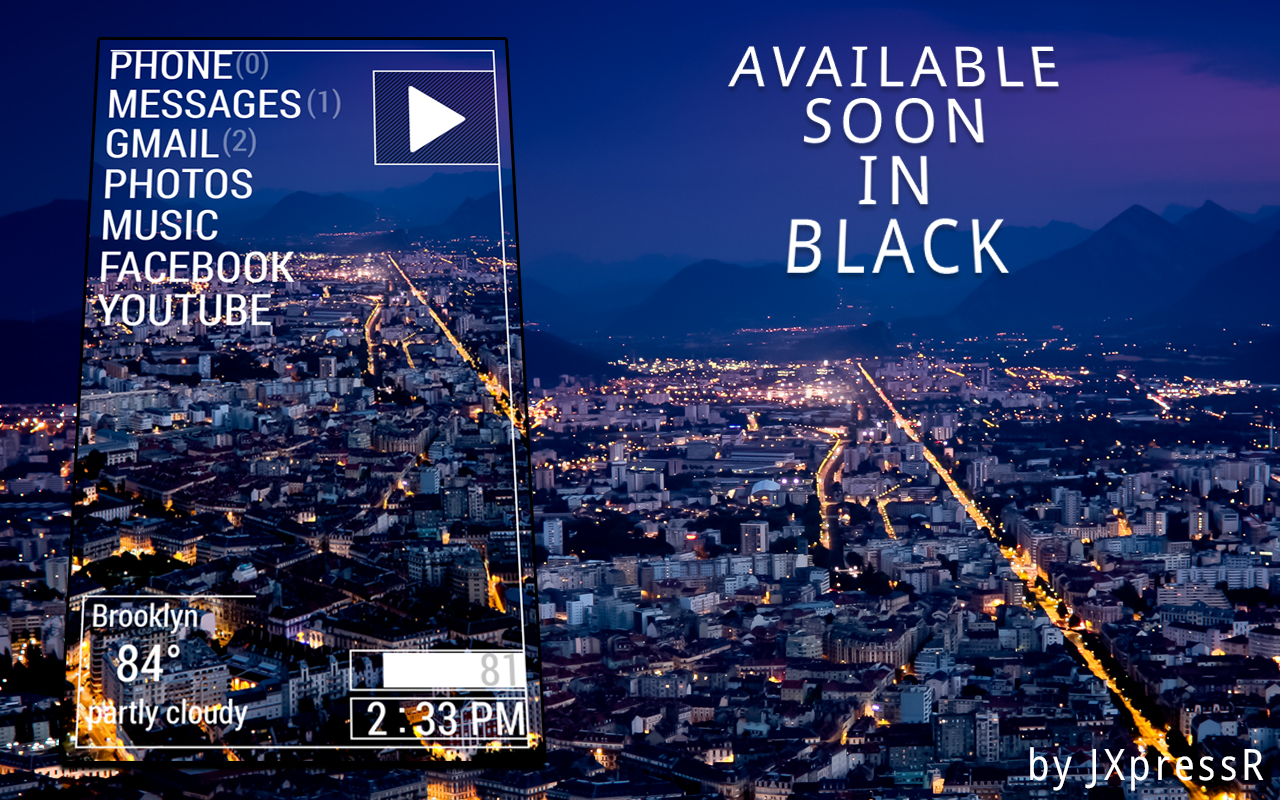


Wednesday, July 24, 2013

HOMEe UCCW Theme Setup Tutorial

1.    Delete all icons/widgets on all homescreens and adjust Apex settings
Font: Eurofurence, it is required to be in a folder named fonts in your internal sd card, download here goo.gl/12jPZV

Optional wallpapers: goo.gl/UMr1c

APEX SETTINGS
Homescreen:
Portrait grid 10x10
Horizontal and vertical margins are none
Wallpaper mode - single screen (non-scrolling)
Uncheck Show indicator
Check hide crosshair, hide notification bar, hide shadow, and hide icon labels
Uncheck Infinite scrolling

Dock settings:
Turn off Dock settings on the top right

Behavior settings:
Check Home key to default screen
Swipe up will show app drawer
Swipe down will show notifications

Advanced settings:
check Resize any widget

2.    Make at least 4 homescreens
*** All widgets are designed to be the width of the screen while just adjusting the height and location of the widget***
Tap and hold on first homescreen
Tap widgets
Tap UCCW tap 3x3
Select music 8x3
Tap on UCCW "tap here"
Tap and hold onto the music widget and adjust the size to fit the full screen by width (keeping height the same(3 rows))
Place it starting from the third row (use screenshot to try to match it as much as possible)
Repeat and add camera 8x3 next right under it (3 rows)
Add the gallery title widget (1 row)
Tap and hold on second homescreen
Add the home 10x3 widget (3 rows)
Resize it to fit fully horizontally and adjust it on the 3rd row down
Add the 10x3 Internet widget right under the home 10x3 next (3 rows)
Add the status bar w/ or w/o percent on the top of the screen (1 row)
Add the week bar right under the status bar (1 row)
Add the phone functions bar widget of your choice to the bottom of the screen (2 rows)

Follow the screenshots above and below to place the rest of the widgets on screen 3 and 4 using the same instructions as above.

Monday, July 22, 2013

Hello, everyone!

I'm an undergraduate computer science major with a taste in computer and phone customization!
I will upload my first UCCW skin very soon along with detailed instructions for installation!